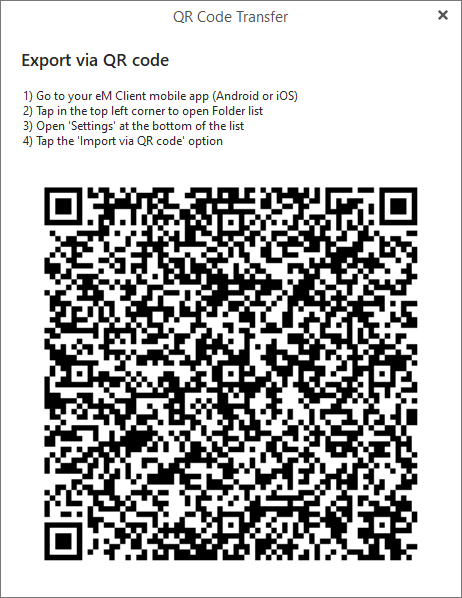
eM Client 9.2 contains a feature to export selected data into a QR code, which can then be scanned from eM Client for Android and eM Client for iOS. More about these mobile apps previews can be found on our blog.
This feature can be changed while the mobile apps are developed, but at this time you can export data from these places:
You can export your accounts and connected settings directly in the Menu > Accounts window. The QR Export button is available in the top toolbar.
Once you click the QR Export button you will get this window:
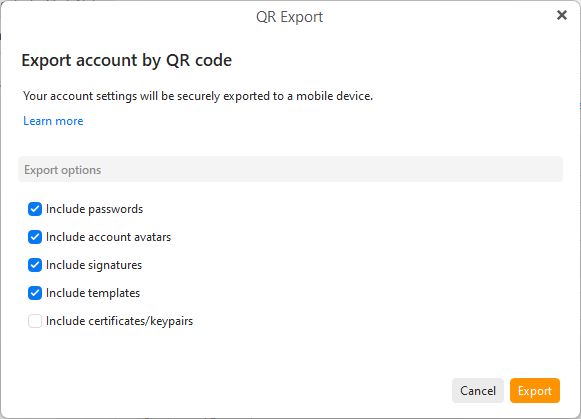
From the Accounts window you can export your account settings and decide which parts to include:
Include passwords - a password will be exported as part of your account, if you uncheck this option, you will need to type in your passwords in the phone app manually
Include account avatars - Your set account avatar in the desktop will be exported into the phone app so you can easily distinguish your mail accounts
Include signatures - All signatures connected to specific accounts will be exported and used automatically with your email accounts
Include templates - All templates assigned to your email accounts will be exported and used the same way as in your desktop eM Client
Include certificates/keypairs - Your PGP keypairs and S/MIME certificates will be exported so you can sign and send/read encrypted mail in your phone app
You can export settings from the Menu > Settings window as well as from specific sections separately.

Clicking the QR Export button in the toolbar of the Settings window will give you these options to export:
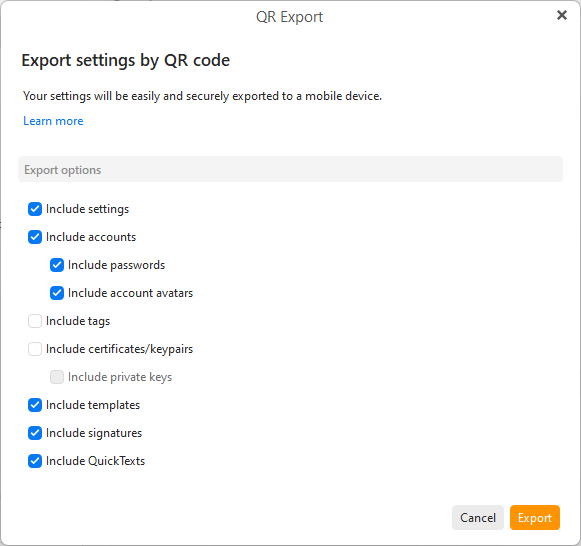
Include settings - export general settings currently supported in the mobile apps
Include accounts - export all your email accounts with an optional checkbox to Include passwords and Include account avatars
Include tags - export local tags
Include certificates/keypairs - export S/MIME certificates and PGP keys of your contacts, with optional checkbox to Include private keys used for signing and decrypting your messages
Include templates - export all templates for your accounts
Include signatures - export all signatures for your accounts
Include QuickTexts - export all created QuickText snippets
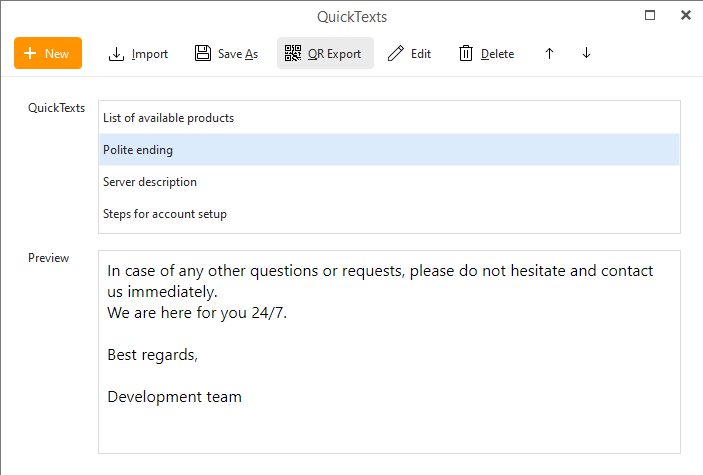
You can export one or multiple of some items in dedicated manage windows, this option is available for:
In the next step you can click Export to generate the QR code, Cancel will end the operation.
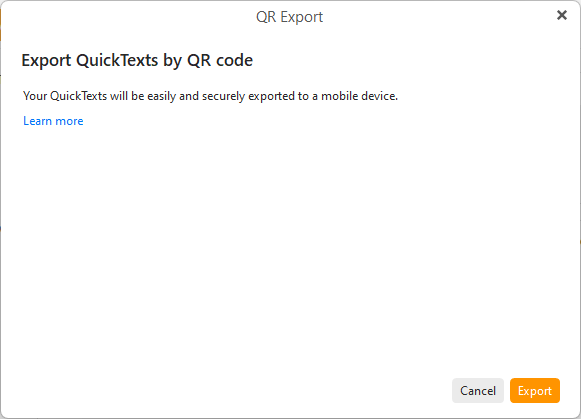
Once you click Export button, eM Client will create a code you can use to import your data into your mobile app. The data is encrypted to the transfer is safe and the data is not kept on our servers for longer than 30 minutes. You can read more detailed and up-to-date explanation on eM Client's QR Export page.